

Online Keyboard Shortcuts
OnlineShortcuts.com delivers a comprehensive reference of essential keyboard shortcuts for Windows, MacOS, and Linux operating systems.
tool Details
Explore More
Alternatives

About Online Keyboard Shortcuts
Online Keyboard Shortcuts, hosted at OnlineShortcuts.com, is a comprehensive, platform-agnostic reference database for keyboard shortcuts across the Windows, macOS, and Linux operating systems. The product serves as a centralized repository of essential hotkey combinations designed to enhance user productivity by reducing dependency on mouse navigation. It covers systemwide shortcuts for each operating system, including key combinations for window management, application launching, text editing, virtual desktop control, and web browser navigation. The platform is structured to provide immediate, actionable information for users ranging from novice computer operators to advanced power users and system administrators. Each shortcut is presented with clear modifier key labels such as Ctrl, Alt, Shift, Win, and Cmd, along with the specific key combination and a concise description of the resulting action. The website categorizes shortcuts into logical groupings: systemwide shortcuts, operating system-specific key shortcuts (such as Windows Key combinations), and application-specific shortcuts for tools like Command Prompt, File Explorer, text editors, and web browsers. The value proposition centers on eliminating the friction of searching through scattered documentation or memorizing obscure key combinations by providing a single, authoritative source. Additionally, the platform offers downloadable cheatsheets in PDF and PNG formats (both dark and light themes) for offline reference. The interface is responsive and accessible across mobile devices, tablets, and desktop computers, ensuring that productivity enhancements are available regardless of the user's hardware configuration. The product is maintained as a free, ad-free resource without any upsells or tracking spyware, emphasizing a commitment to user privacy and unrestricted access to productivity tools.
Features
Comprehensive Multi-Platform Coverage
The platform provides an exhaustive collection of keyboard shortcuts for three major operating systems: Windows, macOS, and Linux. For Windows, it includes systemwide shortcuts like Alt+F4 for closing windows, Win+L for locking the screen, and Win+Shift+S for screenshots. It also covers specialized Windows Key combinations such as Win+E for File Explorer, Win+R for the Run dialog, and Win+V for clipboard history. macOS and Linux shortcuts are similarly cataloged, ensuring that users across all desktop environments have access to the same level of detailed reference material. This cross-platform coverage eliminates the need for users to consult multiple sources when switching between operating systems or managing heterogeneous computing environments.
Categorized Shortcut Organization
Shortcuts are systematically organized into logical categories to facilitate rapid lookup. The main categories include Systemwide Keyboard Shortcuts, Operating System Key Shortcuts, and Application Specific Keyboard Shortcuts. Within Application Specific, subcategories cover Command Prompt (with shortcuts like Ctrl+C for copy, Ctrl+V for paste, and F7 for command history), File Explorer (including Alt+Enter for properties, Ctrl+Shift+N for new folder, and F2 for rename), Text Editing (Ctrl+A for select all, Ctrl+B/I/U for formatting, Ctrl+F/H for find/replace, and Ctrl+Z/Y for undo/redo), Virtual Desktop management (Win+Ctrl+D for new desktop, Win+Ctrl+Arrow for switching, Win+Ctrl+F4 for closing), and Web Browsers (Ctrl+T for new tab, Ctrl+W for close, Ctrl+Shift+T for reopen closed tab, Ctrl+Tab for tab switching, Ctrl+L for address bar, and Ctrl+R for refresh). This hierarchical structure enables users to drill down from general system operations to specific application commands efficiently.
Downloadable Cheatsheet Exports
Users can download the complete shortcut reference as a PDF file or as PNG images in both dark and light themes. The PDF format is ideal for printing or storing on local devices for offline access, while the PNG images can be used as desktop wallpapers, embedded in documentation, or shared with team members. The availability of both dark and light themes ensures readability across different display environments and user preferences. This feature transforms the website from a purely online reference into a portable productivity tool that can be accessed without an internet connection, making it particularly valuable for users in environments with limited connectivity or those who prefer physical documentation.
Responsive and Accessible Design
The website is designed to be fully responsive, automatically adapting its layout and content presentation to fit mobile devices, tablets, and desktop monitors. This ensures that users can access the shortcut reference on any device they are currently using, whether it is a smartphone during a commute, a tablet in a meeting, or a desktop workstation. The responsive design maintains readability of key combinations and descriptions across all screen sizes, with appropriate font scaling and layout adjustments. This accessibility feature is critical for users who need quick reference while working on different hardware configurations or who prefer to keep the reference open on a secondary device while working on their primary computer.
Use Cases
Accelerating Daily Workflow Efficiency
Office workers, developers, and creative professionals can use the platform to learn and adopt keyboard shortcuts that eliminate repetitive mouse movements. For example, a data analyst processing large spreadsheets can use Ctrl+C, Ctrl+V, and Ctrl+Z repeatedly, while a developer can leverage Ctrl+Shift+T to reopen accidentally closed browser tabs or Win+Ctrl+D to create new virtual desktops for organizing project workspaces. By replacing mouse-based navigation with keyboard combinations, users can reduce hand movement between keyboard and mouse, potentially saving several seconds per action and accumulating significant time savings over a workday. The categorized layout allows users to focus on shortcuts relevant to their specific applications, such as text editing shortcuts for writers or File Explorer shortcuts for system administrators managing directory structures.
Onboarding and Training for New Users
IT departments and training organizations can use Online Keyboard Shortcuts as a standardized reference for onboarding new employees or teaching basic computer literacy. The platform provides a structured, easy-to-navigate resource that trainers can incorporate into curriculum materials or recommend as a self-study tool. New users can start with fundamental systemwide shortcuts like Alt+Tab for application switching and Win+D for showing the desktop, then progressively learn more advanced shortcuts as they become comfortable. The downloadable cheatsheets serve as quick-reference cards that can be distributed during training sessions or placed at workstations. This use case is particularly valuable in environments where multiple operating systems are used, as the platform covers Windows, macOS, and Linux in one location.
System Administration and Remote Management
System administrators managing servers or remote desktops often work in environments where mouse functionality is limited or unavailable. The platform provides critical shortcuts for command-line interfaces like Command Prompt (Ctrl+C for copy, Ctrl+V for paste, F7 for command history) and window management (Alt+F4 for closing, Alt+Tab for switching). Administrators can use Win+X to access the Power User menu for quick access to administrative tools like Device Manager, Disk Management, and Command Prompt (Admin). The virtual desktop shortcuts (Win+Ctrl+D, Win+Ctrl+Arrow) enable efficient organization of multiple remote desktop sessions or monitoring tools. This use case highlights the platform's value in scenarios where keyboard-only navigation is not just a convenience but a necessity for effective system management.
Accessibility and Assistive Technology Support
Users with motor disabilities or conditions that make mouse usage difficult can leverage keyboard shortcuts as a primary method of computer interaction. The platform serves as a comprehensive guide for discovering and memorizing keyboard-based alternatives to mouse-dependent operations. For example, users can learn Win+Shift+S for screenshots instead of using mouse-based snipping tools, or Ctrl+Shift+Esc to open Task Manager directly without navigating through menus. The text editing shortcuts (Ctrl+A, Ctrl+B, Ctrl+I, Ctrl+U) allow users to format documents without precise mouse cursor placement. By providing a complete catalog of these alternatives, the platform empowers users to customize their workflow around keyboard navigation, potentially reducing physical strain and improving overall computing accessibility.
Frequently Asked Questions
What operating systems does Online Keyboard Shortcuts cover?
The platform covers three major desktop operating systems: Windows, macOS, and Linux. For Windows, it includes shortcuts for systemwide operations, Windows Key combinations, and application-specific shortcuts for Command Prompt, File Explorer, text editors, virtual desktops, and web browsers. macOS and Linux shortcuts are also cataloged with equivalent key combinations, though the specific modifier keys differ (Cmd on macOS versus Ctrl on Windows/Linux). The coverage is designed to be comprehensive for standard desktop environments, though some niche or highly specialized shortcuts may not be listed.
How are the shortcuts verified for accuracy?
The shortcuts are curated based on default configurations for the specified operating system versions and common applications. However, software updates, custom key mappings, or third-party modifications can alter default shortcuts. The platform recommends users verify shortcuts against their specific software version if they encounter unexpected behavior. For example, Windows updates may change the behavior of Win+C (which currently opens Microsoft Copilot or Search depending on configuration) or introduce new shortcuts. Users running non-standard configurations should test shortcuts in a safe environment before relying on them for critical tasks.
Can I download the shortcuts for offline use?
Yes, the platform provides downloadable cheatsheets in three formats: PDF, dark theme PNG, and light theme PNG. The PDF is suitable for printing or viewing on any device with a PDF reader. The PNG images can be used as desktop wallpapers, embedded in documentation, or stored on mobile devices for quick reference. All downloads are free and require no registration or account creation. The cheatsheets include the same content as the website, organized by category for easy offline navigation.
Is there a mobile app or offline version of the website?
The website is designed to be fully responsive and accessible through any modern web browser on mobile devices, tablets, and desktops. There is no dedicated mobile application; the responsive web design ensures that the content renders appropriately on smaller screens without requiring a separate app installation. For offline access, users are encouraged to download the PDF or PNG cheatsheets from the website while connected to the internet, then access those files locally when offline. The website itself requires an internet connection to load, as it is a live web resource rather than a locally installed application.
Similar to Online Keyboard Shortcuts
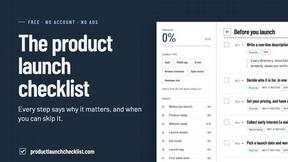
Product Launch Checklist
A free launch checklist for SaaS, apps, AI tools and more. Every step says why it matters and when you can skip it.

HomeAnswerBook
Practical, independent guides to home repairs, maintenance, costs, troubleshooting, and everyday fixes.
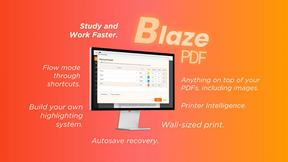
BlazePDF
Highlight faster. Study in flow with custom shortcuts and a workflow built around you. Print smarter, or turn any page into a tiled poster.
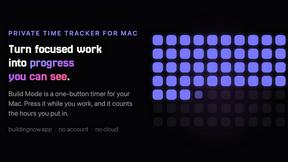
Build Mode for Mac
Build Mode is a Mac app that turns focused sessions into visible progress, so you can see the work adding up before the results arrive.


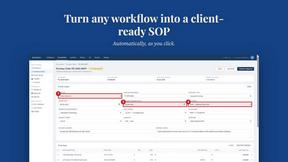
MySOP.guru
Capture any workflow in your browser and export a branded, step-by-step SOP with screenshots. €5 per document, no subscription.